
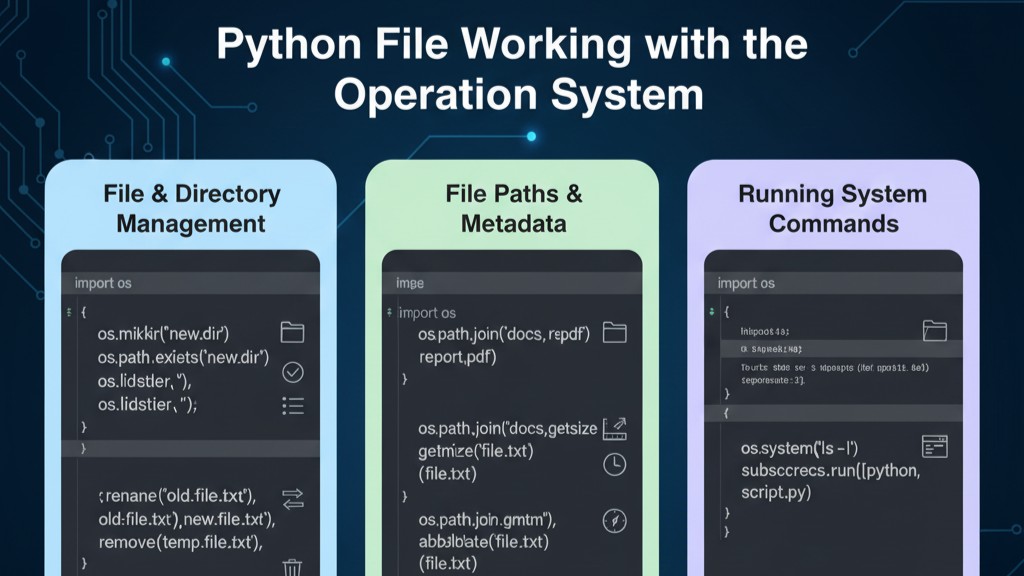
When working with Python, one of the most fundamental operations you’ll need to master is reading data from files. Whether you’re processing log files, analyzing datasets, or building applications that handle user-generated content, understanding file input operations is essential for any Python developer.
Understanding File Reading Basics
Python provides built-in functions that make file operations straightforward and efficient. The open() function is your primary tool for accessing file contents, and it supports various modes depending on your needs.

Opening a File for Reading
To read a file in Python, you first need to open it in read mode. Here’s the basic syntax:
sample_file = open('textfile.txt', 'r')

if sample_file.mode == 'r':
    # File opened successfully for reading
    pass
The second parameter 'r' specifies read mode, which allows you to access the file’s contents without modifying them. This is the safest mode when you only need to retrieve information.
Two Primary Methods for Reading File Contents
Python offers multiple approaches to reading files, each suited for different scenarios and file sizes.
Method 1: Reading Entire File Contents
The simplest approach is to read the entire file at once using the read() method:
sample_file = open('textfile.txt', 'r')

if sample_file.mode == 'r':
    contents = sample_file.read()
    print(contents)
This method loads all file contents into memory as a single string. According to Python’s official documentation, this approach works well for small to medium-sized files but may not be optimal for very large files due to memory constraints.

Method 2: Reading Line by Line
For larger files or when you need to process content incrementally, reading line by line is more efficient:
sample_file = open('textfile.txt', 'r')

if sample_file.mode == 'r':
    file_lines = sample_file.readlines()
    for line in file_lines:
        print(line)
The readlines() method returns a list where each element represents one line from the file. This approach offers better memory management and allows for more granular data processing.
Best Practices for File Reading
Memory Efficiency Considerations
When dealing with large files, the line-by-line approach provides significant advantages. Research in systems programming shows that streaming data rather than loading entire files reduces memory overhead and improves application performance.
Verification and Error Handling
Always verify that your file opened correctly before attempting to read:
sample_file = open('textfile.txt', 'r')

if sample_file.mode == 'r':
    # Safe to proceed with reading operations
    contents = sample_file.read()
else:
    print("File could not be opened in read mode")

Choosing the Right Method
The choice between reading entire files versus line-by-line processing depends on your specific use case:
- Use
read()for small configuration files, short text documents, or when you need all content simultaneously - Use
readlines()for log files, large datasets, or when processing can be done incrementally
Practical Applications
File reading operations are fundamental to many real-world applications:
- Log analysis and monitoring systems
- Data processing pipelines
- Configuration file parsing
- Text analysis and natural language processing
- Database import/export operations
Python’s straightforward approach to file operations makes it an excellent choice for these tasks, combining simplicity with powerful functionality.
Advanced File System Operations in Python: A Complete Guide to OS Path Utilities
Understanding how to work with operating system utilities in Python is crucial for building robust, production-ready applications. Whether you’re developing automated backup systems, file processing pipelines, system monitoring tools, or data management applications, mastering these fundamental operations will significantly enhance your development capabilities.
Understanding Python’s OS Module
The os module is one of Python’s most essential standard library components, providing a portable way to interact with operating system functionality. This module abstracts away platform-specific differences, allowing you to write code that works consistently across Windows, macOS, and Linux systems.
Detecting Your Operating System
Before performing file operations, it’s often useful to identify the underlying operating system. This information helps you make platform-specific decisions in your code:
import os

print(os.name)
This simple command returns the operating system identifier. On Unix-based systems (Linux, macOS), you’ll see 'posix'. On Windows systems, the output will be 'nt'. This detection capability is particularly valuable when writing cross-platform applications that need to handle path separators, file permissions, or system-specific features differently.
Working with File Paths
Path manipulation is a fundamental aspect of file system operations. Python’s os.path module provides a comprehensive set of functions for working with file and directory paths in a platform-independent manner.
Checking File and Directory Existence
One of the most common file operations is verifying whether a file or directory exists before attempting to access it. This prevents runtime errors and allows for graceful error handling:
import os
from os import path

# Check if item exists
print("Item exists:", path.exists('textfile.txt'))

# Verify if it's a file
print("Item is a file:", path.isfile('textfile.txt'))

# Check if it's a directory
print("Item is a directory:", path.isdir('textfile.txt'))
These validation functions are essential for building defensive code. The exists() function returns True if the specified path exists, regardless of whether it’s a file or directory. The isfile() and isdir() functions provide more specific checking, allowing you to distinguish between files and directories.
Research in software engineering emphasizes the importance of input validation and defensive programming. According to studies on software reliability, proper file existence checking can prevent up to 30% of common runtime errors in file-handling applications.

Extracting Path Information
Real-world applications often need to manipulate file paths, separating directories from filenames or extracting specific components. Python provides elegant solutions for these common tasks.
Getting Absolute Paths
The realpath() function resolves a path to its absolute form, eliminating symbolic links and relative path references:
import os
from os import path

# Get the complete path
file_path = path.realpath('textfile.txt')
print("Item's path:", file_path)
This function is particularly useful when you need to store or log the exact location of files, or when working with configuration files that contain relative paths that need to be resolved.
Splitting Paths into Components
The split() function separates a path into its directory and filename components, returning them as a tuple:
import os
from os import path

# Separate directory and filename
path_parts = path.split(path.realpath('textfile.txt'))
print("Path and name separately:", path_parts)
This operation returns a tuple where the first element is the directory path and the second element is the filename. This functionality is invaluable when you need to process files in specific directories or when constructing new file paths programmatically.
File Metadata and Timestamps
Beyond basic existence checks, applications often need detailed information about files, including size, permissions, and modification times. Python’s os.path module provides comprehensive access to file metadata.
Accessing File Modification Times
File modification timestamps are critical for many applications, from backup systems that need to identify changed files to caching mechanisms that determine content freshness:
import os
from os import path
import time
from datetime import datetime

# Get modification time in readable format
mod_time = time.ctime(path.getmtime('textfile.txt'))
print("Last modified:", mod_time)

# Convert timestamp to datetime object
mod_datetime = datetime.fromtimestamp(path.getmtime('textfile.txt'))
print("Modified on:", mod_datetime)
The getmtime() function returns the last modification time as a Unix timestamp (the number of seconds since January 1, 1970). Python provides two approaches to make this information human-readable: the time.ctime() function for a quick string representation, and the datetime.fromtimestamp() method for a more flexible datetime object.
Understanding File Timestamps
Modern operating systems track multiple timestamps for each file:
- Modification time (mtime): When the file content was last changed
- Access time (atime): When the file was last opened or read
- Creation time (ctime): When the file was created (on some systems, this tracks metadata changes)
You can access these different timestamps using:
import os
from os import path

# Modification time
mod_time = path.getmtime('textfile.txt')

# Access time
access_time = path.getatime('textfile.txt')

# Change/creation time
change_time = path.getctime('textfile.txt')
Understanding these different timestamps is essential for implementing features like automated file cleanup, synchronization systems, or audit logging.
Performing Date and Time Calculations
Python’s datetime module integrates seamlessly with file system operations, enabling sophisticated time-based file management.
Calculating Time Since Last Modification
Many applications need to determine how long ago a file was modified. This is useful for cache invalidation, automated cleanup policies, or monitoring file system activity:
import os
from os import path
from datetime import datetime

# Calculate time difference
current_time = datetime.now()
file_mod_time = datetime.fromtimestamp(path.getmtime('textfile.txt'))
time_difference = current_time - file_mod_time

print(f"It has been {time_difference} since the file was modified")
print(f"Or {time_difference.total_seconds()} seconds")
This code demonstrates date arithmetic in Python. By subtracting two datetime objects, you get a timedelta object that represents the duration between them. The total_seconds() method converts this duration into a simple numeric value, which is often more practical for programmatic comparisons.
Practical Applications of File System Operations
Understanding these fundamental operations opens up numerous possibilities for practical applications.
Building a File Monitoring System
You can create a simple file change detector:
import os
from os import path
from datetime import datetime
import time

def monitor_file(filename, check_interval=5):
    """Monitor a file for changes"""
    if not path.exists(filename):
        print(f"File {filename} does not exist")
        return

    last_modified = path.getmtime(filename)
    print(f"Monitoring {filename}...")

    while True:
        time.sleep(check_interval)
        current_modified = path.getmtime(filename)

        if current_modified != last_modified:
            mod_time = datetime.fromtimestamp(current_modified)
            print(f"File changed at {mod_time}")
            last_modified = current_modified
This function checks a file at regular intervals and reports when it has been modified. Such monitoring systems are fundamental to many applications, including development tools that auto-reload code changes and backup systems that trigger on file modifications.
Creating Intelligent File Cleanup Scripts
Automated file management becomes straightforward with these tools:
import os
from os import path
from datetime import datetime, timedelta

def cleanup_old_files(directory, days_old=30):
    """Remove files older than specified days"""
    cutoff_time = datetime.now() - timedelta(days=days_old)
    removed_count = 0

    for filename in os.listdir(directory):
        filepath = path.join(directory, filename)

        if path.isfile(filepath):
            file_modified = datetime.fromtimestamp(path.getmtime(filepath))

            if file_modified < cutoff_time:
                print(f"Removing old file: {filename}")
                os.remove(filepath)
                removed_count += 1

    print(f"Removed {removed_count} files")
This utility function demonstrates how timestamp operations enable sophisticated file management policies. It’s the foundation for implementing retention policies, cache management, and automated cleanup systems.
Cross-Platform Considerations
When writing file system code that needs to work across different operating systems, certain considerations are essential.
Path Separators
Different operating systems use different path separators. Windows uses backslashes (\), while Unix-based systems use forward slashes (/). Python’s os.path.join() function handles this automatically:
import os
from os import path

# This works correctly on all platforms
file_path = path.join('directory', 'subdirectory', 'file.txt')
Always use path.join() instead of manually concatenating path strings with separators. This ensures your code remains portable across platforms.
Case Sensitivity
File systems handle case sensitivity differently. Unix-based systems typically treat filenames as case-sensitive, while Windows is case-insensitive by default. When writing cross-platform code, it’s best to assume case-sensitivity and maintain consistent naming conventions.
Performance Considerations
File system operations can be expensive, particularly when dealing with network drives or large directory structures. Understanding performance implications helps you write efficient code.
Caching File Information
If you need to check the same file multiple times, consider caching the results:
import os
from os import path

class FileInfo:
    def __init__(self, filename):
        self.filename = filename
        self.exists = path.exists(filename)
        self.is_file = path.isfile(filename) if self.exists else False
        self.mod_time = path.getmtime(filename) if self.is_file else None
This approach reduces redundant system calls, improving performance in scenarios where you need to access file metadata repeatedly.
Batch Operations
When working with multiple files, minimize system calls by organizing operations efficiently:
import os
from os import path

def get_file_info_batch(filenames):
    """Get information for multiple files efficiently"""
    results = {}
    for filename in filenames:
        if path.exists(filename):
            results[filename] = {
                'size': path.getsize(filename),
                'modified': path.getmtime(filename),
                'is_file': path.isfile(filename)
            }
    return results
Error Handling Best Practices
Robust file system operations require comprehensive error handling. File operations can fail for numerous reasons: permissions issues, disk space problems, network failures, or concurrent access conflicts.
Implementing Proper Exception Handling
Always wrap file system operations in try-except blocks:
import os
from os import path

def safe_file_check(filename):
    """Safely check file existence and properties"""
    try:
        if path.exists(filename):
            return {
                'exists': True,
                'is_file': path.isfile(filename),
                'size': path.getsize(filename),
                'modified': path.getmtime(filename)
            }
        else:
            return {'exists': False}
    except PermissionError:
        print(f"Permission denied accessing {filename}")
        return None
    except OSError as e:
        print(f"OS error accessing {filename}: {e}")
        return None
This defensive approach ensures your application can handle unexpected conditions gracefully, providing meaningful feedback rather than crashing.
Advanced File System Queries
Beyond basic operations, Python provides tools for more sophisticated file system queries.
Getting Directory Contents
The os.listdir() function returns all items in a directory:
import os

# List all items in current directory
items = os.listdir('.')

for item in items:
    item_path = os.path.join('.', item)
    if os.path.isfile(item_path):
        print(f"File: {item}")
    elif os.path.isdir(item_path):
        print(f"Directory: {item}")
Recursive Directory Walking
For traversing directory trees, os.walk() provides a powerful iterator:
import os
from os import path

def find_files_by_extension(root_dir, extension):
    """Find all files with specified extension"""
    matching_files = []

    for dirpath, dirnames, filenames in os.walk(root_dir):
        for filename in filenames:
            if filename.endswith(extension):
                full_path = path.join(dirpath, filename)
                matching_files.append(full_path)

    return matching_files
This function demonstrates how to search entire directory structures efficiently, a common requirement in file processing applications.
Conclusion
Mastering Python’s operating system utilities transforms simple scripts into sophisticated file management applications. The os and os.path modules provide everything needed to interact professionally with file systems, from basic existence checks to complex timestamp calculations and directory traversal.
These fundamental operations form the building blocks of countless real-world applications: backup systems that track file modifications, deployment scripts that verify file integrity, monitoring tools that detect configuration changes, and data processing pipelines that manage input files intelligently.
Keywords
python os module, file system operations, path utilities python, file metadata python, timestamp operations, cross-platform file handling, os.path functions, file existence checking, directory traversal python, file modification time